
Skip to main content
Setting Up Your Account
- Sign up for an account by submitting a Help Desk Ticket.
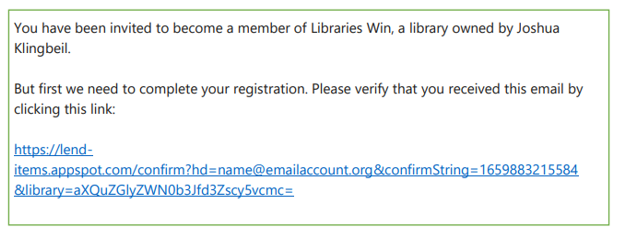
- Once you get a response from the system staff person, check your email for a message from Libraries Win Lend Items Team. Check your junk mail if you don’t see it. It looks like this:
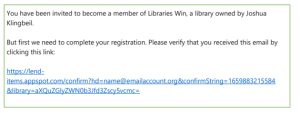
- Follow the link in the email (click on it or copy and paste).
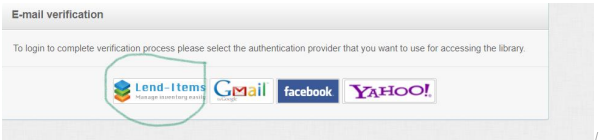
- Set up your authentication. We recommend selecting Lend Items:
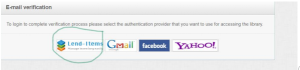
- You’ll be prompted to choose a password and then taken directly to the Libraries Win Lend-Items Library.
Signing Into Your Account
- Go to https://lend-items.appspot.com/ to sign into your account.
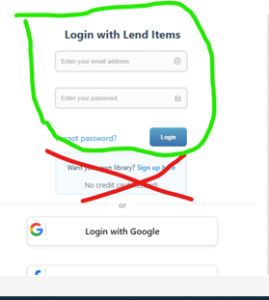
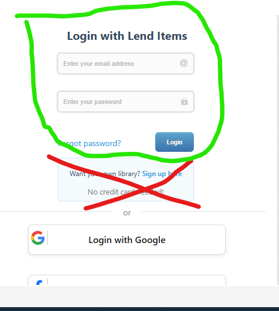
- You will choose Log In with Lend-Items Account.
- Do not set up your own library by accident, it can cause you problems with accessing the Lend Items library in the future.
Searching for Items
- To search items, select the second icon from the left, Search Items to Reserve. This will take you to the Search Items to Reserve Section:
- The default screen might not show all the kits. You can use the drop-down menu to select the category you want to search, or you can select ALL to see everything. You can find a list of all the categories at the end of the instructions.
- If searching ALL, you can scroll through to browse all items, or use the search box to narrow your results by age group or name of kit or keyword. For instance, use the search bar to search ALL for finding materials for different age groups:
Early Childhood
School Age
Teen/Adult
All Ages
Can’t find what you are looking for? Want to make a suggestion for a kit? Submit a Help Desk Ticket (from your system’s website).
Booking Items
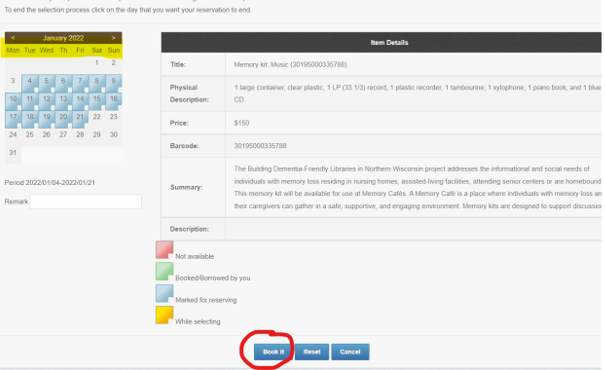
- Once you find something you want, you can reserve it by clicking on the Book It button on the right hand side of the screen.
- Select the dates you want to reserve by clicking on the start and end dates in the calendar that pops up.
- Start your reservation on the day the item should leave the owning system.
- End your reservation on the day the item should arrive back at the owning system.
- Book the start and end of your reservation on a business day (not a weekend or a holiday).
- ALLOW TIME FOR TRANSPORTATION BOTH WAYS, 3-5 business days, depending on your library’s courier schedule, and whether the item is at your home system or is farther away.
- Make your reservation at least 1 business day before you want the item shipped to you.
- Note that this Lend-Items calendar starts on a Monday.
- Most items can be reserved for 35 days.
- A few items require pick-up and drop-off at the owning system as they are not eligible to be send via courier.
- After selecting the calendar days you want to reserve something, be sure to click the Book It button on the bottom of the screen.
- You’ll be routed to a reservation page confirming your reservation. Scroll down and click OK button to complete your reservation.
Keeping Track of Items
You can find all of your bookings on your Dashboard, under Bookings. You have the option to cancel your bookings there, as well.
Receiving Items
- On the day your item is to be shipped, you will receive an email letting you know that your item was checked out by system staff. This email also includes the date it is due back to the system office.
- Please remember to send items out in courier so they will make it back to the system by the due date, as others may be waiting for them.
- Please send an email to [email protected] if you do not receive your item when you expect it to arrive.
- Some items are sent in locked containers. You can find lock combinations in the Item Details in the Lend Items record.
- If you receive a damaged item or if an item has been damaged in your care, please send an email to [email protected].
Returning Items
- Please make sure all parts and pieces are there, and are returned together in the correct containers. Do not mix multiple kits.
- Please tape all lids that are not locked to keep them from popping off.
- Please use the enclosed return label to ensure the kit goes back to the correct place.
- Some items are packed to prevent damage during shipping. Please return the items with the enclosed packing material to prevent damage.
- If the owning system doesn’t receive the item back on the due date, Lend-Items will send you an overdue notification email. Please return the item promptly.
- If you cannot put an item back into courier at least three days before the due date, send an email to [email protected].
Contact Information
You can reach out via email to [email protected] if you have questions or concerns.